
Photorealistic Workspace01
Text to Image16:9
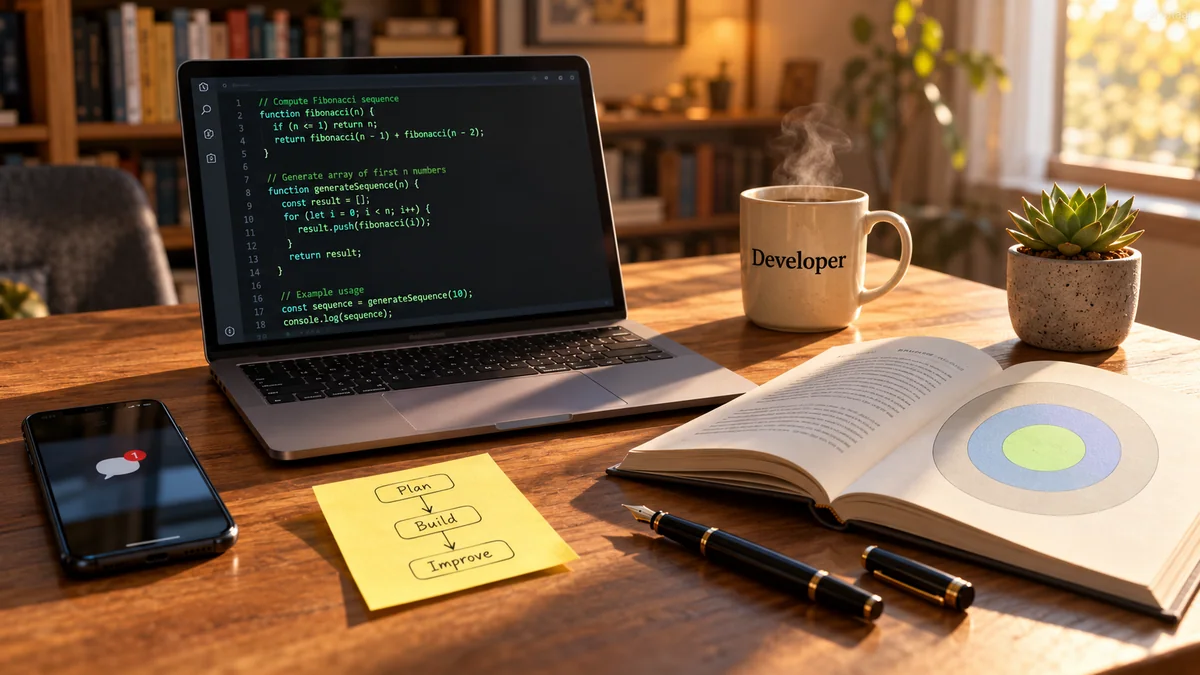
Developer Desk in Morning Light
A detailed developer workspace with readable screen content, practical desk objects, realistic steam, and warm morning light.
Create original images or edit existing visuals with GPT Image 2.5 Flare and Sunburst. Start with a prompt, add references when needed, and choose the quality, size, and background.
Start with an idea or upload an existing image. Choose Flare for fast everyday generation or Sunburst when image quality and editing precision matter most.
Start with your own images or create something from an idea.
Describe what you want to change and what should stay the same.
Pick the speed, finish, and shape that best suit your image.
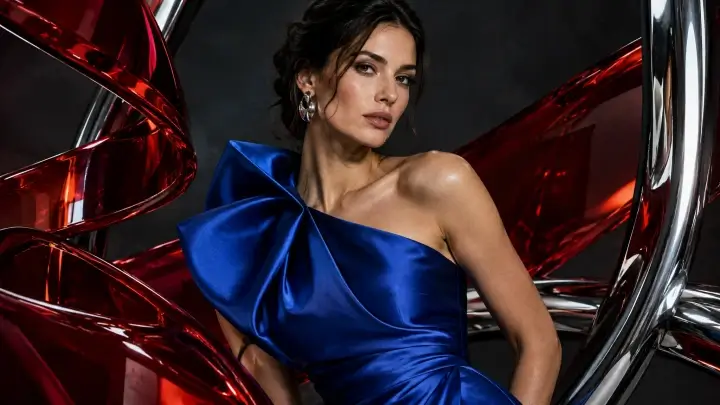
Luxury Editorial Portrait
Realistic skin, satin, glass and metallic reflections.
Explore nine examples across image generation, focused editing, readable text, reference-guided creation, product visuals, and illustration.
A detailed developer workspace with readable screen content, practical desk objects, realistic steam, and warm morning light.
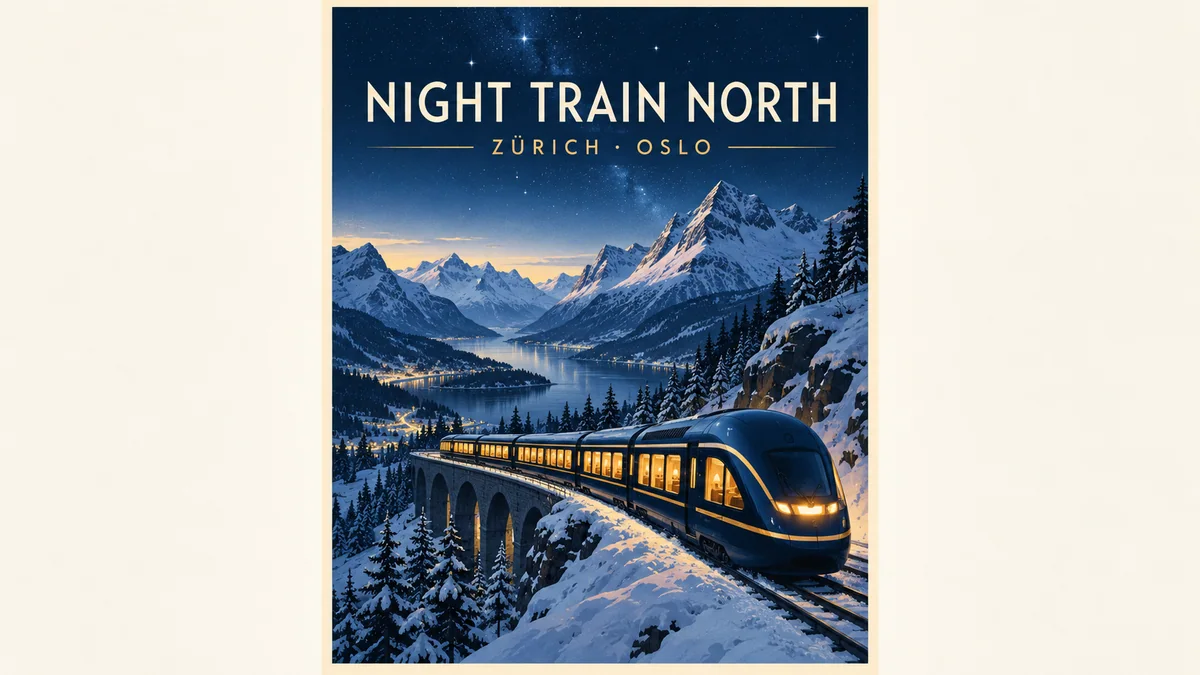
A polished travel campaign that combines readable typography, strong layout, and cinematic destination art.
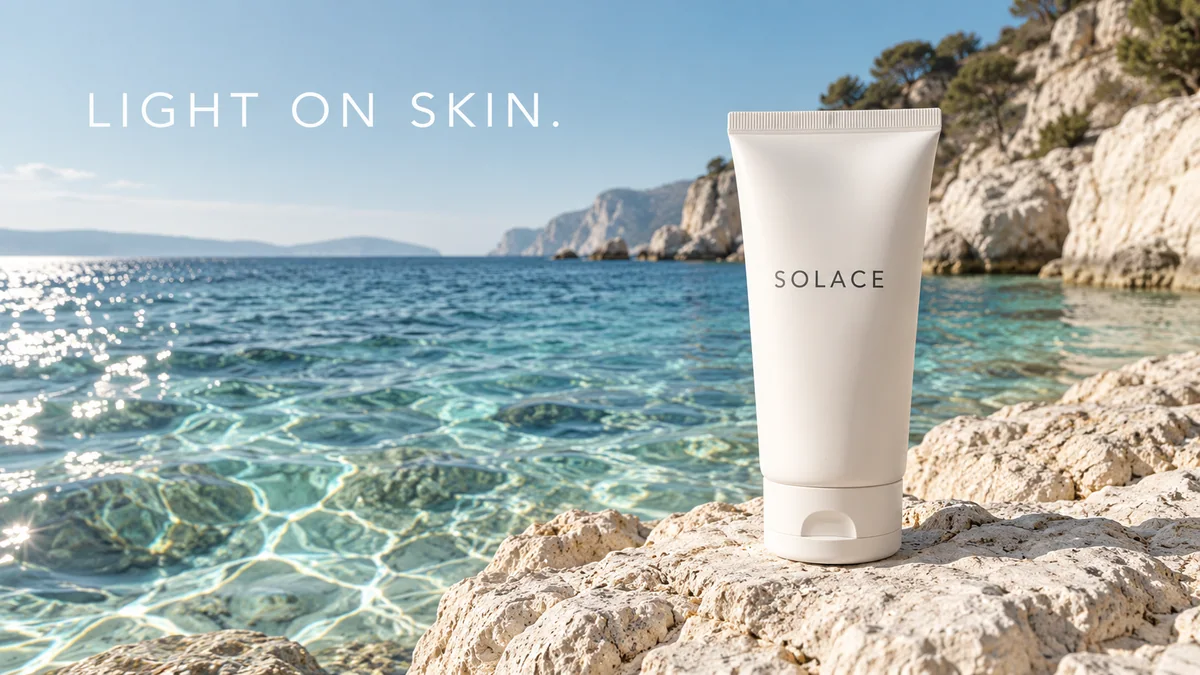
An advertising prompt that controls product styling, composition, and exact campaign text.
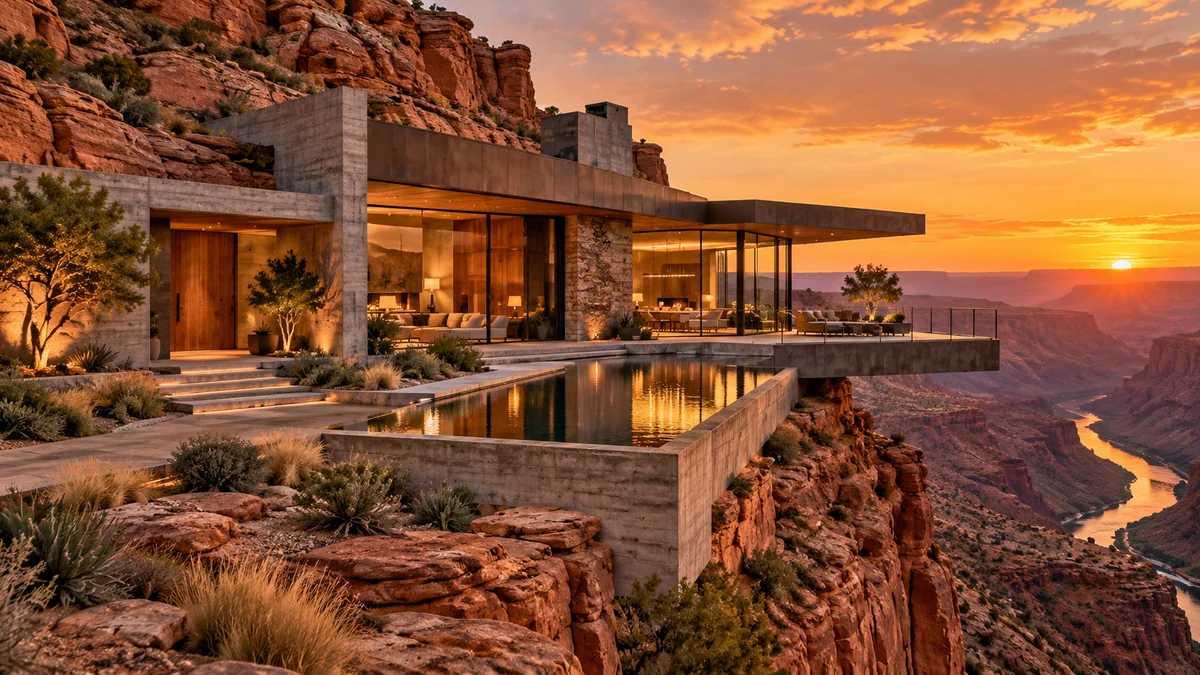
A high-end architectural concept with realistic materials, precise perspective, and dramatic natural light.
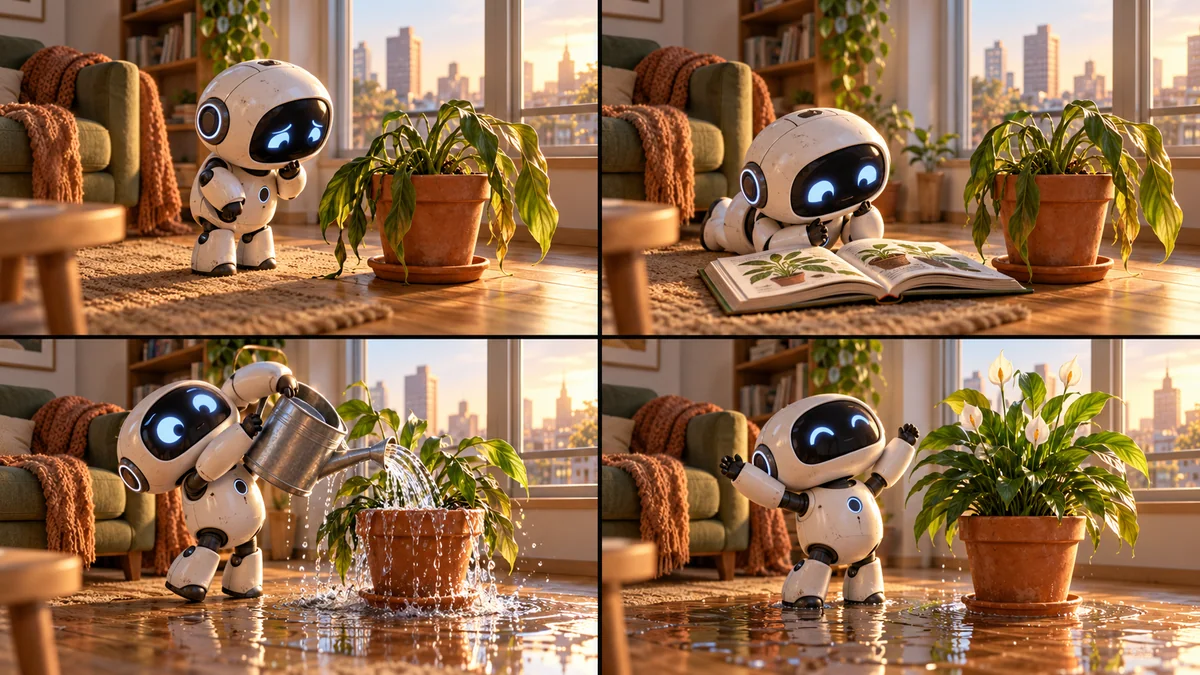
A sequential storytelling prompt with consistent characters, setting, and visual continuity.
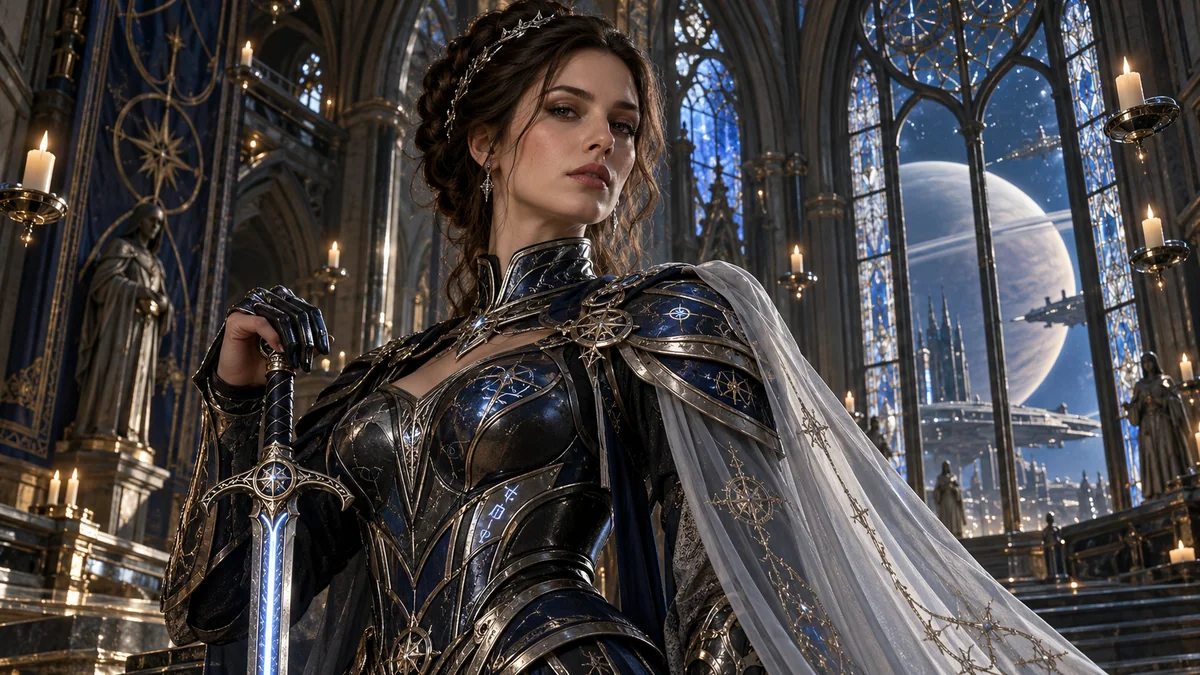
A cinematic female warrior portrait blending gothic fantasy, starship design, and realistic luxury materials.
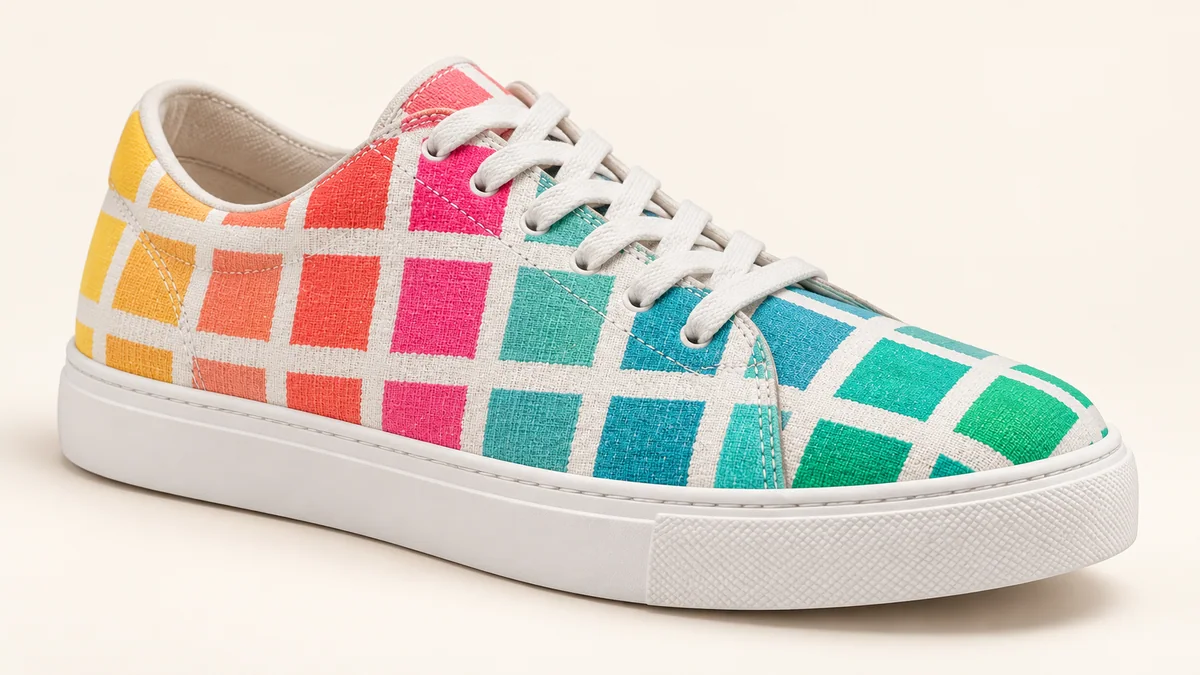
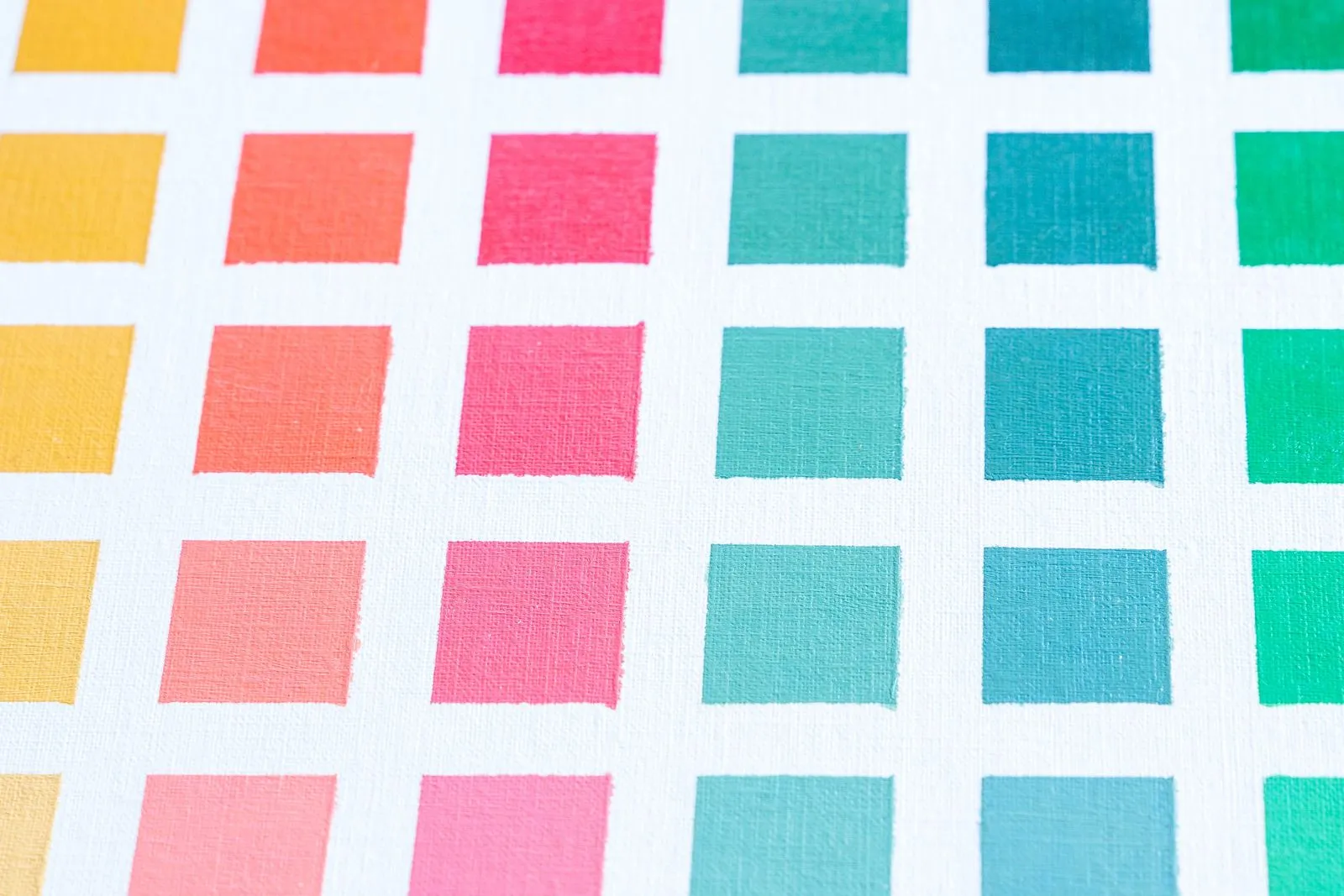 Input
InputA textile reference guides the color, pattern, and material treatment of an original product image.
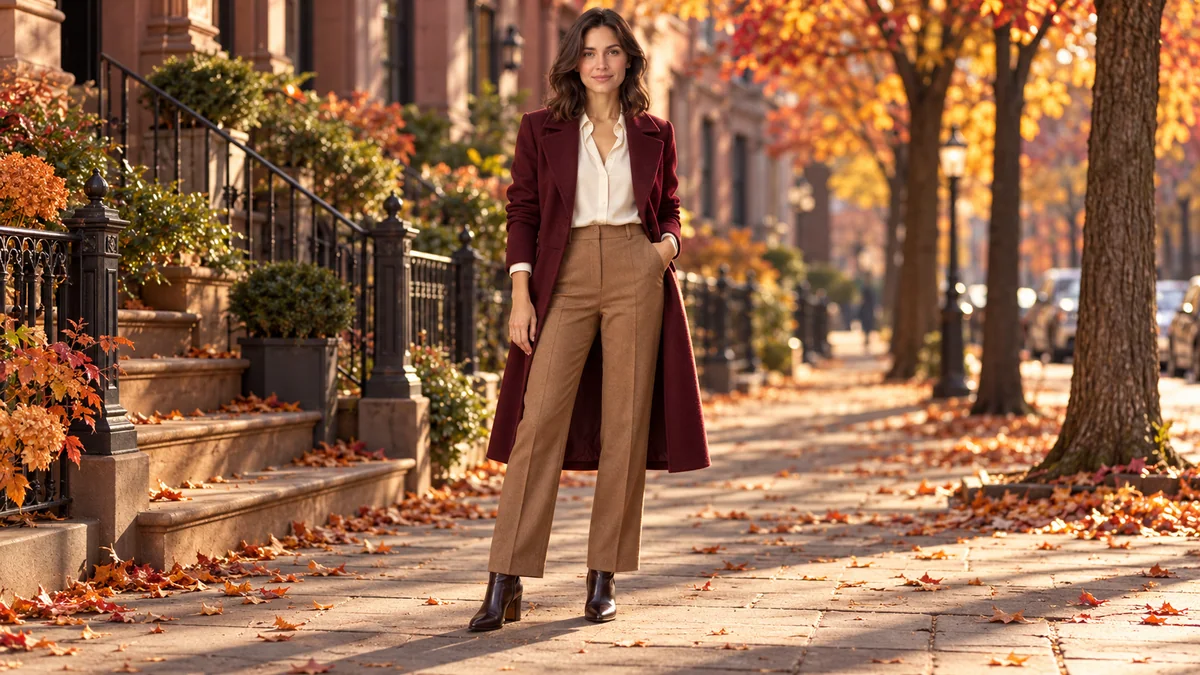
 Input
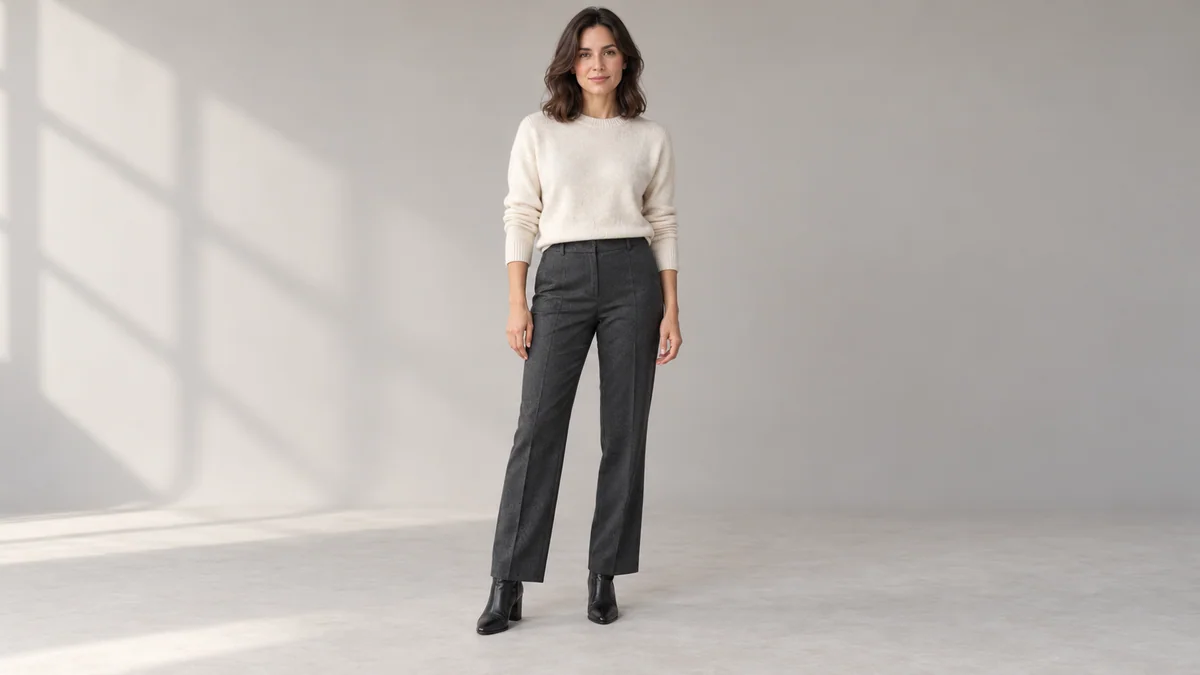
InputA complete seasonal fashion transformation that keeps the subject recognizable and naturally placed in the new scene.
 Input
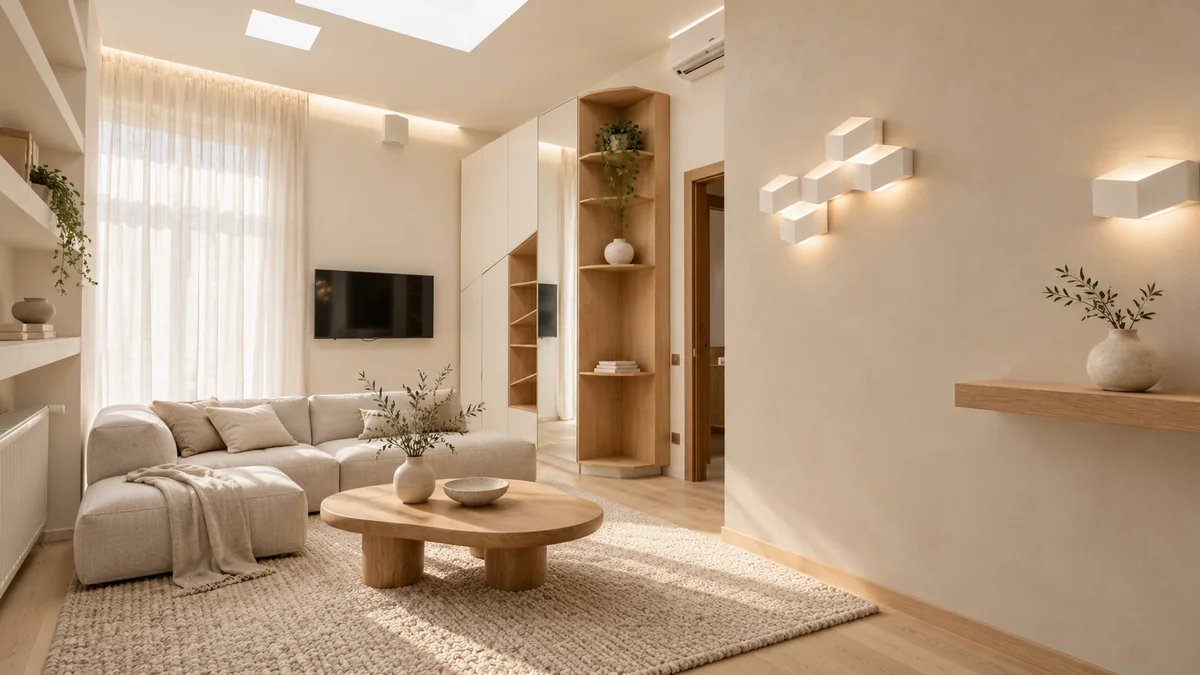
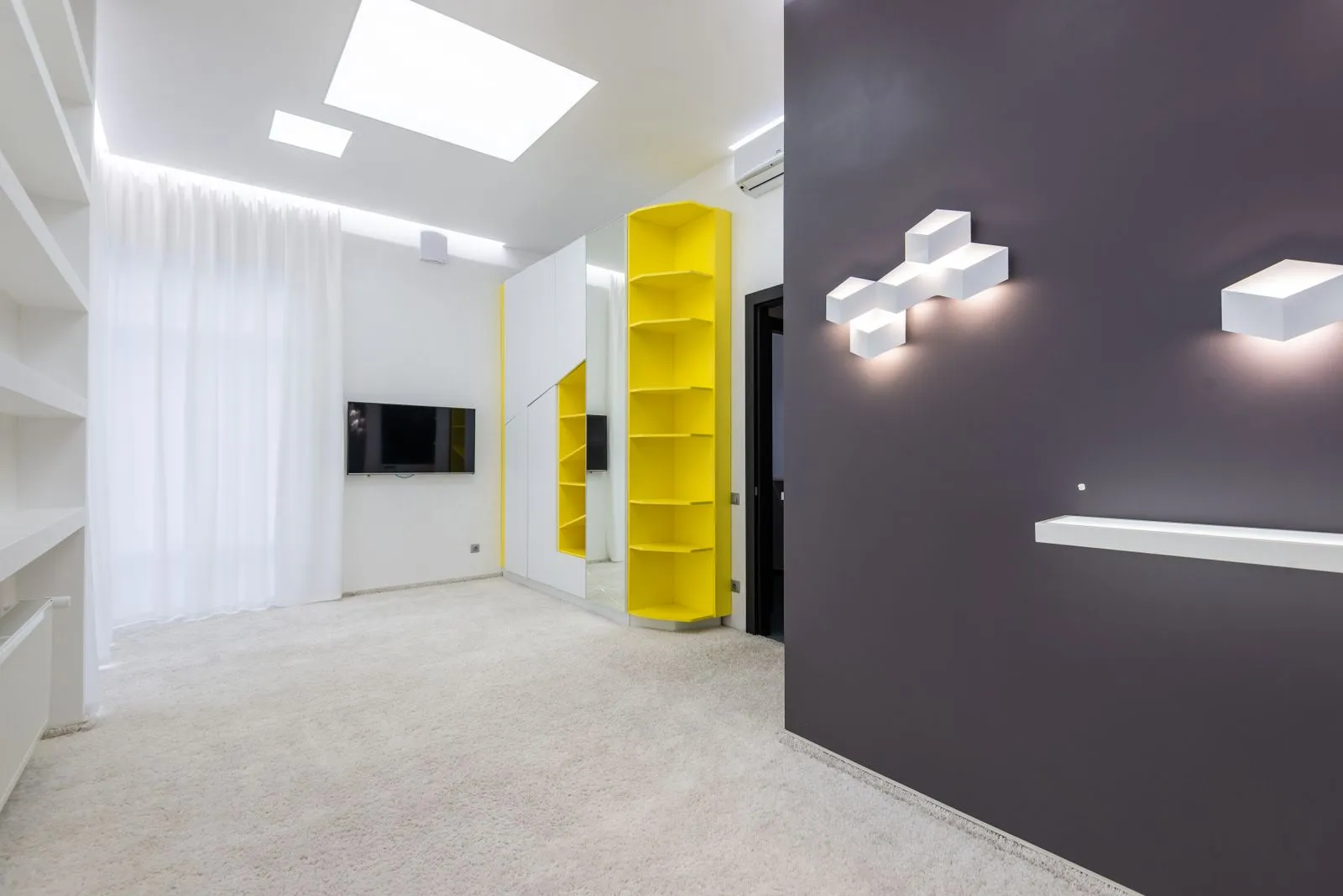
InputA room redesign that changes the furniture and finishes while preserving the architecture.
Create and refine images with more flexibility and control, from fast creative exploration to precise, reference-guided edits and polished final results.
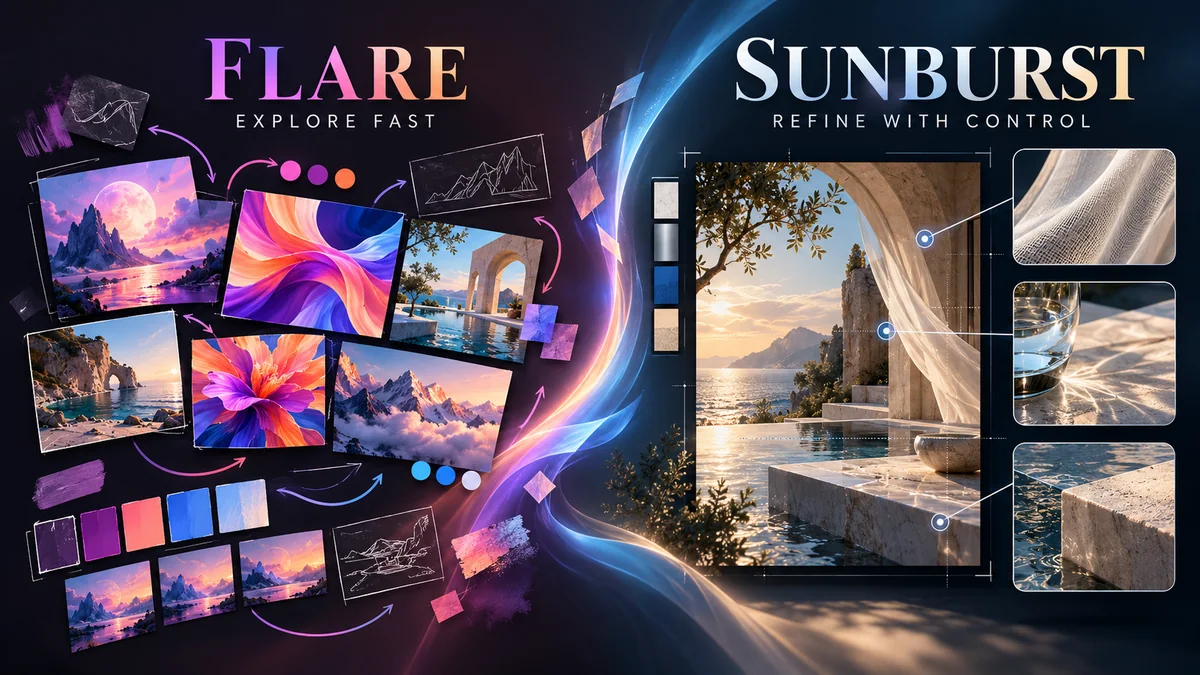
GPT Image 2.5 offers Flare and Sunburst within one model family, giving you greater flexibility across image generation and editing workflows.
Compare Flare and Sunburst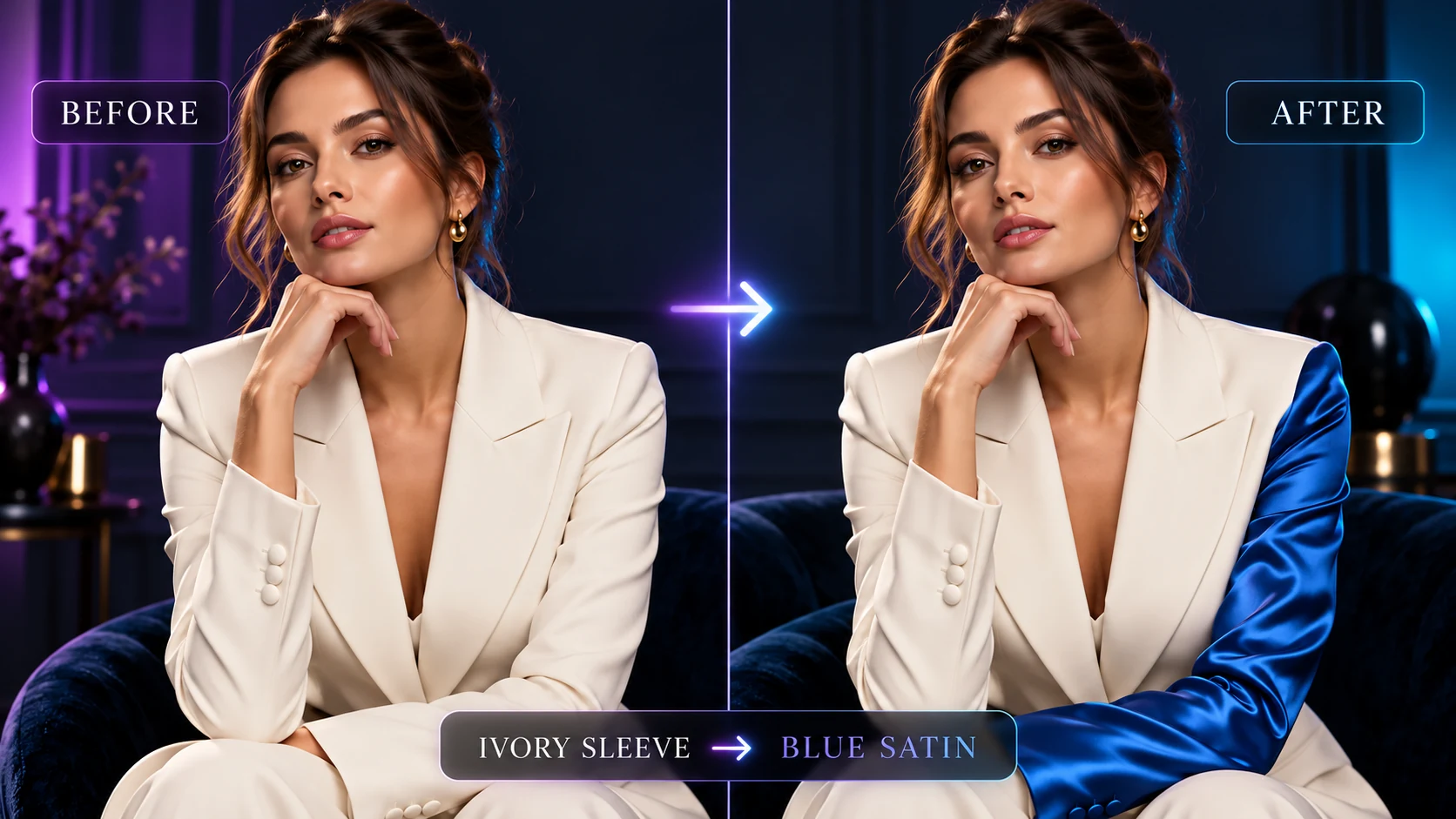
Make focused changes to clothing, products, colors, text, lighting, or backgrounds while preserving the parts of the image you want to keep.
Edit an image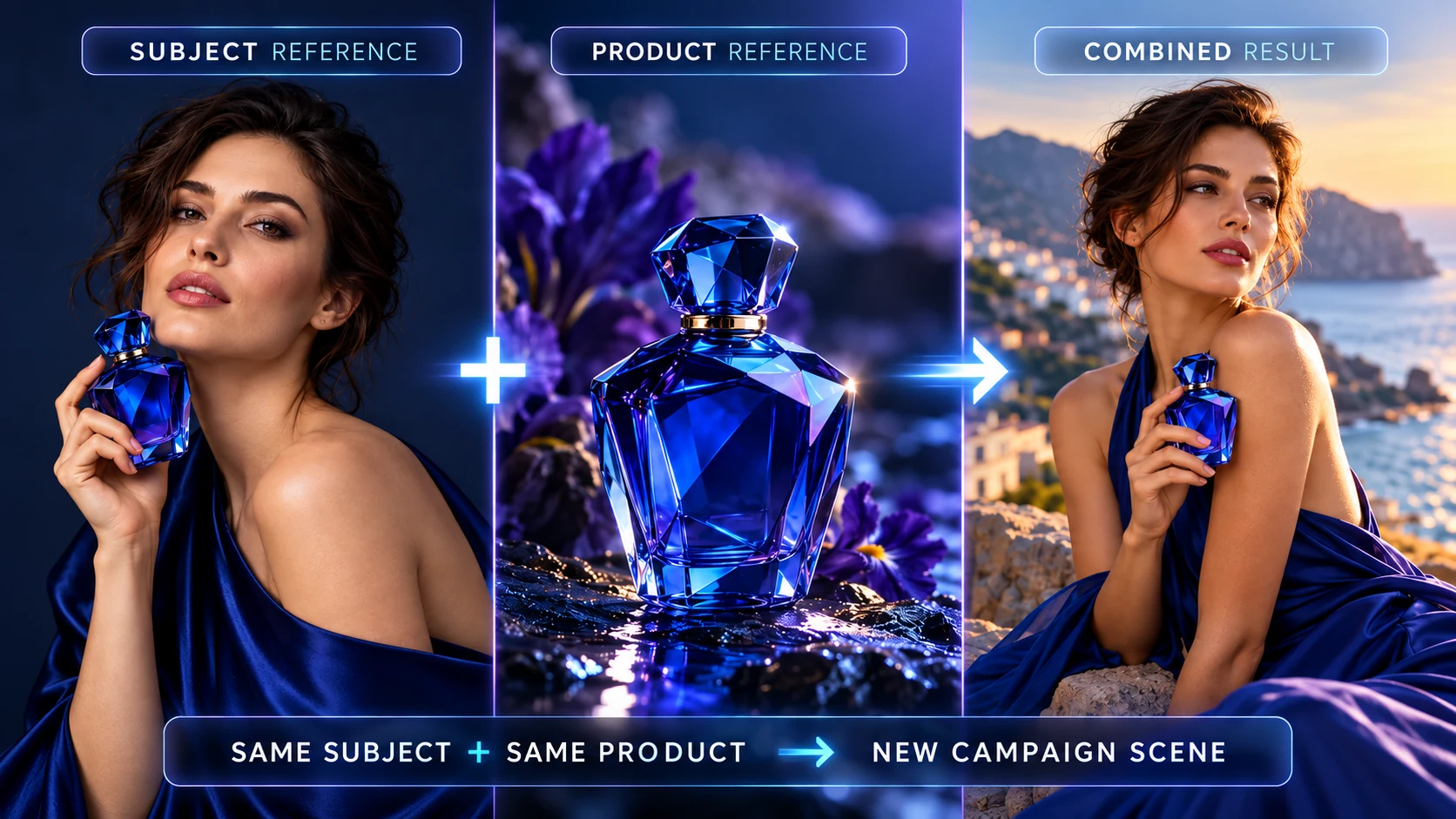
Keep important details from people, products, compositions, and reference images more consistent across both generation and editing workflows.
Create with references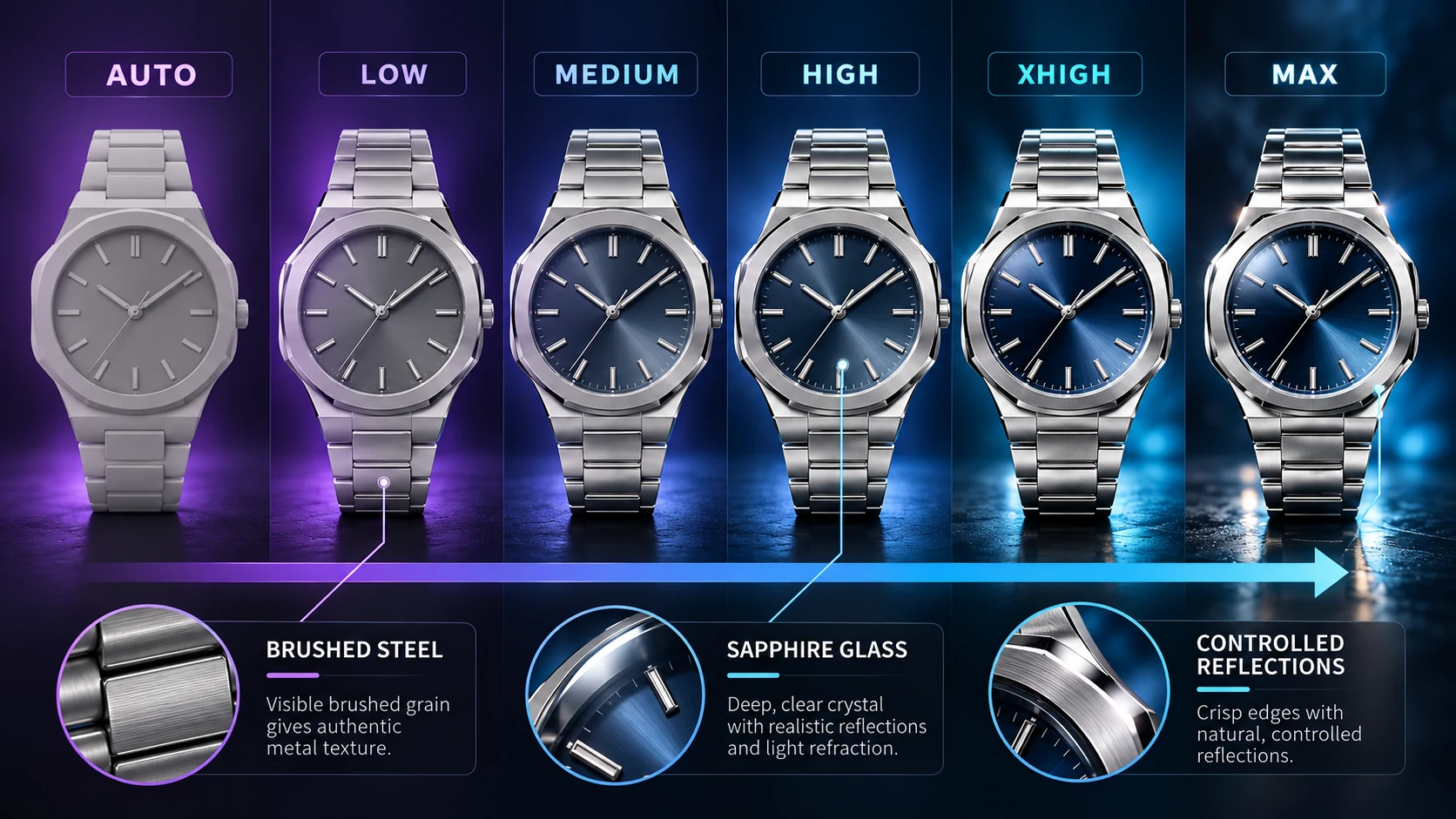
Choose from Auto, Low, Medium, High, XHigh, or Max to balance visual detail, generation time, and credit use for each project.
Choose your qualityChoose Flare for fast, high-quality everyday creation, or Sunburst when demanding image quality and editing precision matter most.
Fast, high-quality generation for everyday creative work.
Start with Flare for prompt exploration, creative drafts, multiple variations, and workflows where faster results matter.
Turn a prompt or reference image into a polished visual in four simple steps.
Select Flare or Sunburst, then choose Text to Image to create from a prompt or Image to Image to edit an existing visual.
Write a clear prompt that covers the subject, composition, style, lighting, and any important constraints. For edits, specify what should change and what should stay the same.
Upload optional reference images and explain what each one should guide. Then choose your quality, aspect ratio, background, and output format.
Review the credit cost shown on the Generate button, then create your image. Check the result and refine one instruction at a time if you want to generate another version.
Learn how to write effective AI image prompts with clear subjects, composition, lighting, style, text, and editing instructions.
A good prompt usually includes:
Create a premium perfume ad with a clear glass bottle on beige stone. Use soft afternoon light and realistic reflections. Add “Quiet Luxury” once at the top. Do not add other text.
For more examples and advanced techniques, explore the full GPT Image 2.5 prompting guide.
Start with a prompt, product photo, brand asset, or visual reference. Use GPT Image 2.5 to complete practical image-generation and editing tasks for commerce, marketing, design, and content production.
Upload product photos, packaging assets, or style references. Generate studio shots, lifestyle scenes, background variations, and transparent cutouts for product listings, storefronts, and paid campaigns.
Provide a campaign brief, product image, exact headline, and visual direction. Produce ad concepts, promotional graphics, posters, and landing-page visuals for product launches, creative testing, and multichannel campaigns.
Upload brand assets, moodboards, product references, or approved visual examples. Create new campaign visuals with a consistent palette, material treatment, lighting, composition, and art direction.
Upload an existing photo and describe only the change you need. Replace clothing, backgrounds, colors, or objects while specifying which identity, pose, composition, and lighting details must remain unchanged.
Start with a campaign asset, reference image, or content brief. Turn it into square posts, vertical graphics, covers, thumbnails, and announcements while keeping the core message and visual direction consistent.
Describe an interface, feature, environment, or user scenario—or upload a sketch or reference. Generate visual concepts, presentation mockups, and design directions for internal reviews and early stakeholder feedback.
Review generated text, product details, identities, and reference accuracy before publishing or moving an image into final production.
One-time credit packs
Buy credits once and create when you are ready. Purchased credits never expire, and there is no subscription.
Need credit usage, refund, or billing details? View full pricing details
Find clear answers about GPT Image 2.5 generation, image editing, reference photos, supported sizes, transparent backgrounds, and credits.
GPT Image 2.5 is an OpenAI image model family for creating and editing images. It creates images from prompts and edits images with reference photos. Flare is built for speed. Sunburst is built for detail and controlled edits.
Create an account and choose Text to Image or Image to Image. Write a clear prompt, add reference images if needed, select the image settings, review the credit cost, and generate your image.
Yes. Use Text to Image to create a new visual from a prompt. For better results, describe the subject, use case, layout, lighting, style, and any text you want inside the image.
Yes. Use Image to Image to upload an existing image and describe what you want to change. For more precise edits, say what should stay the same, such as the face, product shape, camera angle, label, or background style.
Yes. Reference images can help guide the subject, style, product shape, character, outfit, composition, or background. When you upload more than one reference, give each image a clear role in your prompt.
You can upload PNG, JPEG, and WebP reference images. Each file can be up to 10 MB.
Yes. Add the exact headline, label, or short text in your prompt and say where it should appear. Keep the text short, then review spelling and readability before publishing.
Yes. Choose transparent background and PNG output when you need product cutouts, icons, stickers, ecommerce images, or design assets. Review edges like hair, glass, fabric, and reflections before publishing.
The current generator supports Square 1:1, Landscape 3:2, Portrait 2:3, Wide 16:9, and Vertical 9:16 images.
Use Flare for fast drafts, quick variations, and everyday image ideas. Use Sunburst for final images, product shots, detailed edits, reference-based work, and visuals that need sharper details.
Credit use depends on the quality setting. Low uses 2 credits, Medium uses 5, High uses 13, XHigh uses 25, Max uses 50, and Auto currently uses 25 credits per image. The Generate button shows the cost before you create the image.
You get 5 free credits when you create an account. That is enough for one Medium-quality image or up to two Low-quality images.
No. Flare and Sunburst currently use the same number of credits for each quality level on this site.
No. This is an independent third-party AI image generator. It is not affiliated with, endorsed by, or operated by OpenAI.
Bring your next visual idea to life with GPT Image 2.5 using a clear prompt, an optional reference image, and flexible generation settings.