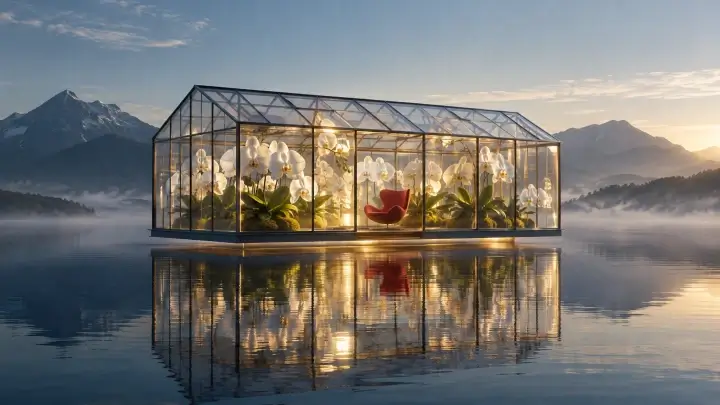
A premium destination visual for hotel campaigns and travel landing pages.
GPT Image 2.5
GPT Image 2.5 Flare AI Image Generator
Turn an idea into an image with GPT Image 2.5 Flare. Create new visuals, test variations, or edit an uploaded image with clear instructions.
Create from a prompt, edit an image, or guide the result with references.
Try it online
Create with GPT Image 2.5 Flare
Start with a prompt or reference image, then use Flare to create and refine your result.
What would you like to create?
Start with your own images or create something from an idea.
Reference Images Required Up to 16
0/16
Required
Describe what you want to change and what should stay the same.
0 / 4,000
Choose your result
Pick the speed, finish, and shape that best suit your image.
ModelChoose speed or richer visual detail.
Image qualityHigher resolution creates more detail and uses more credits.
Image shapeChoose the shape that fits where you plan to use the image.
More optionsBackground, file format, and content preferences
BackgroundUse Transparent for cutouts, stickers, and design assets.
File formatPNG preserves crisp details and supports transparency.
Content preferenceStandard works well for most creative requests.
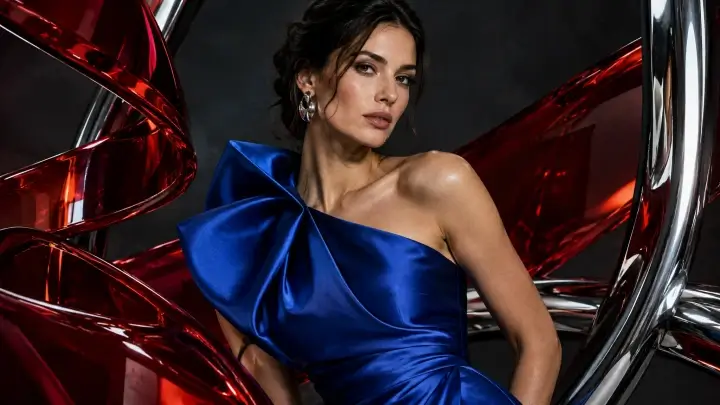
Featured example
Luxury Editorial Portrait
Realistic skin, satin, glass and metallic reflections.
GPT Image 2.5 Flare Examples by Industry
Explore six Flare examples across three generation modes. Select any image to see the references and prompts behind the result.
A studio vehicle placed in a rainy city campaign while preserving its complete design.
Character and environment references combined into cinematic science-fiction key art.
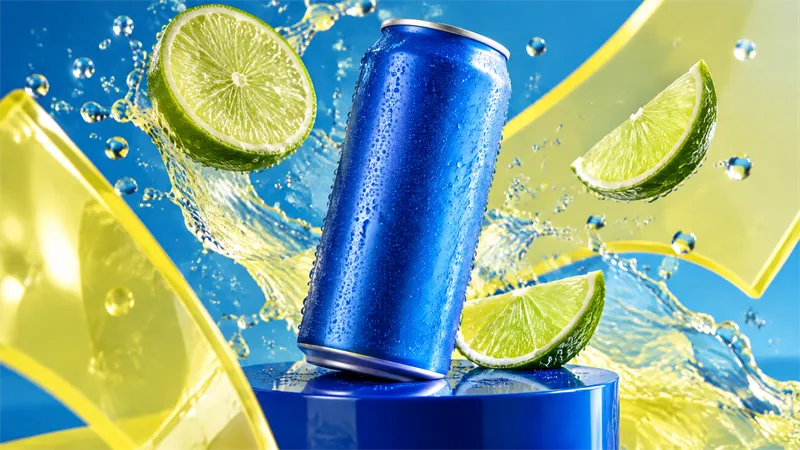
Label accuracy, packaging geometry, stone texture, and controlled editorial light.
A new product setting that protects the watch color, construction, angle, and scale.
A person and garment reference combined while retaining identity and tailoring details.
GPT Image 2.5 Flare Key Features
Fast Everyday Image Generation
Explore several ideas before choosing a direction. Flare is designed for fast everyday generation, making it useful for testing compositions and campaign concepts.
Rapid Prompt Iteration
Start with a simple brief, review the image, then adjust one detail at a time. Save promising prompts so you can return to them later.
Image Editing with Reference Inputs
Turn an existing visual into a new version. Provide the original image and describe what should change—and what must stay as it is.
Product, Social, and Marketing Visuals
Create early concepts for ecommerce, social posts, ads, banners, illustrations, and campaigns. Review each result before using it in a larger project.
Flexible Quality and Image Sizes
Choose a size and quality setting for your intended use. Higher settings can take more credits, so compare the visible result before changing them.
What Can You Create with GPT Image 2.5 Flare?
Social Media Images
Explore feed graphics, story concepts, launch visuals, announcements, and alternative campaign directions.
Product Concepts
Test lighting, backgrounds, compositions, and visual treatments for a new product idea.
Marketing Variations
Start from the same creative brief and develop multiple directions for different audiences or channels.
Everyday Image Edits
Adjust a scene or replace a selected element while preserving the useful parts of the original image.
Fashion and Outfit Concepts
Combine a person reference and garment image to visualize a new look before moving into a more detailed workflow.
How to Use GPT Image 2.5 Flare
1. Describe Your Idea
Write a prompt with a clear subject, composition, mood, and useful constraints.
2. Add a Reference if Needed
Upload an existing image when you want to preserve or reuse visual information.
3. Choose a Setting That Fits
Select the displayed quality and size. Check the credit cost before generating.
4. Generate, Review, and Iterate
Look for the details that matter to your project, then refine the prompt or try a new creative direction.
GPT Image 2.5 Flare vs Sunburst
Both models support text-to-image and image editing. Flare is designed for speed. Sunburst is intended for tasks that need more detail or closer edit control, but it may take longer.
If a concept needs closer control over an edit or important reference details, test the same source in Sunburst and compare the outputs.
See the shared prompts and side-by-side results in the Flare vs Sunburst comparison.
GPT Image 2.5 Flare Credits
This website shows the selected credit cost before generation. Its current quality-based schedule is:
| Quality | Credits per image |
|---|---|
| Low | 2 |
| Medium | 5 |
| High | 13 |
| XHigh | 25 |
| Max | 50 |
| Auto | 25 |
Your 5 signup credits cover one Medium generation or up to two Low generations under the current schedule. Choose your settings before clicking Generate. View credit packs and pricing.
Create your next image
Turn Your Next Idea into an Image with Flare
Start from a prompt, test another direction, or make a targeted edit to something you already created.
Create with FlareCommon questions
GPT Image 2.5 Flare FAQ
Find quick answers about model capabilities, image workflows, and choosing the right option for your project.
What is GPT Image 2.5 Flare?
Flare is the speed-oriented GPT Image 2.5 model for everyday image generation and editing.
Can Flare edit existing images?
Yes. Upload a source image and describe the edit you want to make.
Can Flare combine a person and outfit image?
The model accepts multiple image inputs. Assign a clear role to each image, then tell it which details to preserve.
Is Flare always faster than Sunburst?
Flare is designed for faster generation. Your observed time depends on the job, quality, size, and service conditions.
Can I use Flare for higher-quality images?
Flare supports several quality options. Review your result before increasing the setting; a higher label does not guarantee a visibly better image for every prompt.
How is Flare different from Sunburst?
Flare emphasizes speed and everyday iteration; Sunburst emphasizes image quality and more demanding editing control.
Is this the official OpenAI website?
No. This is an independent third-party image generation service. It is not affiliated with or endorsed by OpenAI.