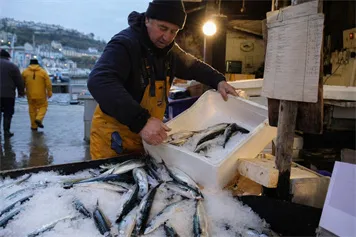
Example output01
Documentary Photography
Lighting, texture, weather, and camera details help guide a realistic market photo.
Use GPT Image 2 to turn a written idea into a new image, or upload reference images and make focused edits while keeping the details that matter.
Start with your own images or create something from an idea.
Describe the subject, style, composition, lighting, and any text you want.
Choose the image quality and aspect ratio. Credit use changes with quality.
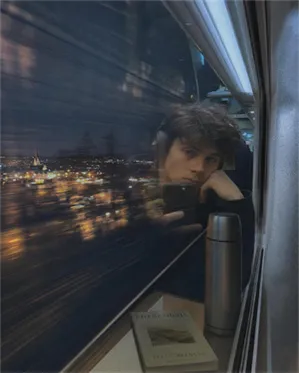
Night train portrait
Use reflections, mixed light, and everyday details to create a believable travel portrait.
Explore GPT Image 2 results for photography, products, interfaces, text, editing, and character design. Choose one to start creating.
Lighting, texture, weather, and camera details help guide a realistic market photo.
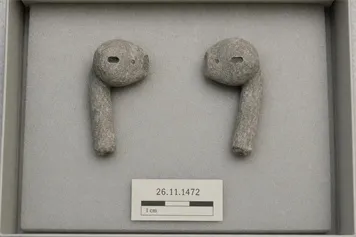
A clear material brief can turn a familiar product into a museum-style concept.
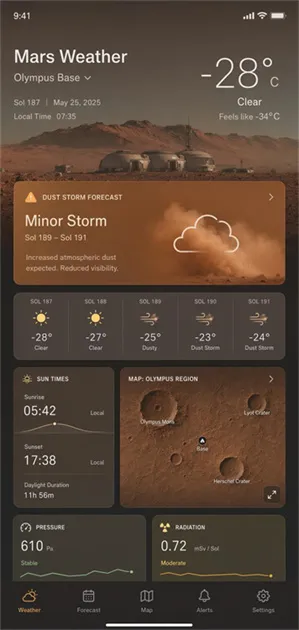
Exact copy, clear hierarchy, and spacing help guide a useful mobile UI concept.
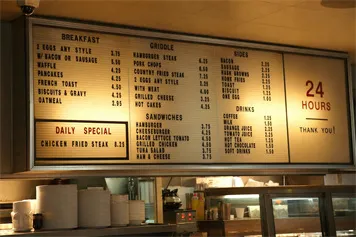
Exact copy and clear type directions can improve menu layouts and small text.
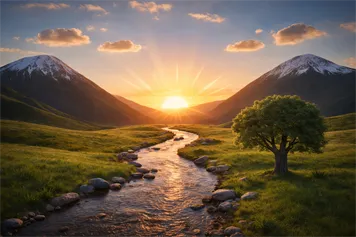
A reference drawing can guide the layout while the model adds realistic materials and lighting.
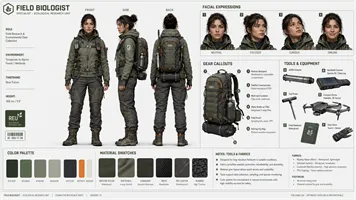
A reference sheet can guide the same clothing, colors, and character details across scenes.
GPT Image 2 is an AI image generation and editing model for creating new visuals, changing existing images, and working with references.
GPT Image 2 is OpenAI's image generation and editing model. You can use it to create a new image from a prompt or edit an uploaded image with clear instructions. When you add reference images, the model uses them automatically to guide the result.
Describe a new image in words and generate it without an input image.
Upload an image and describe the specific change you want to make.
The model uses reference images directly, without a separate fidelity control.
Use one source image when you want to change part of an existing visual.
Add several images when you need to combine a subject, product, or visual style.
State what should change, what should remain, and how the result should look.
Create new visuals, edit uploaded images, add readable text, and use references to guide the result.
Describe the lighting, materials, texture, and camera angle to guide a more natural result.
Create posters, signs, interfaces, and infographics with exact copy and clear placement. Check all text before use.
Change an object, background, color, or lighting. Tell GPT Image 2 what should stay the same.
Describe a visual style or provide a reference, then apply that direction to a new subject or scene.
Label each input image and explain how its subject, product, clothing, or style should appear in the result.
Repeat the same visual details across related scenes to help a character remain recognizable.
Use GPT Image 2 to explore product shots, campaign visuals, social posts, portraits, posters, and early design ideas.
Plan a product shot before a photo shoot, or explore a new setting for an existing item.
Create a visual direction for an ad, product launch, or landing page.
Turn an announcement or campaign idea into a post-ready visual concept.
Explore a clear poster layout with room for a headline, date, and event details.
Try different lighting, settings, and moods for a personal or editorial portrait.
Make an early visual for a presentation, interface, package, or client pitch.
Create or edit with GPT Image 2 in four steps: write a clear prompt, add references, say what should stay the same, and review the result.
Describe the subject, setting, lighting, framing, and exact text. Use visual facts instead of vague quality words.
Upload one image for an edit or several for a combined result. Explain the role of each image.
State exactly what should change and what must stay the same, then choose the output settings.
Check the text, layout, subjects, and preserved details. Make one clear adjustment at a time when needed.
Start with these GPT Image 2 prompts for product photos, posters, portraits, ads, and focused edits.
Create a studio product photo of a matte black wireless speaker on dark stone. Use soft light from the left, a clean charcoal background, subtle reflections, and a centered composition. Show the fabric grille and controls clearly. No logo or extra objects.
Create a modern poster for a nighttime music festival. Use the exact headline "AFTER DARK" in large, bold type. Add a deep violet sky and flowing light trails. Keep the date and venue area easy to read. Do not add extra words or logos.
Create an editorial portrait of a woman beside a large apartment window. Use soft daylight, a natural 50mm camera view, a neutral outfit, and light film grain. Frame the image from the waist up and keep her expression calm and confident.
Create a skincare ad with a frosted glass serum bottle on pale stone. Use warm daylight, a soft beige background, and a few small botanical details. Leave open space on the left for campaign copy. Keep the bottle shape and label area clear.
Create an illustration of a small robot watering plants on a rooftop garden at sunrise. Use simple geometric shapes, warm colors, and soft shadows. Show the city in the distance without distracting from the robot and plants.
Replace the background with a warm gray photography studio backdrop. Keep the person, face, expression, pose, clothing, camera angle, framing, and lighting unchanged. Do not add props, text, or logos.
Compare GPT Image 2 with GPT Image 2.5 Flare and Sunburst across speed, editing control, reference fidelity, and visual detail.
Earlier generation
Flare and Sunburst
Standard image generation, focused edits, and reference-guided images.
Faster drafts, sharper detail, and more controlled creative edits.
One GPT Image 2 workflow.
Flare for speed and Sunburst for more detailed editing.
Good for everyday image tasks.
Flare is designed for faster generation; OpenAI describes up to 50% lower latency compared with Images 2.0.
Supports prompt-based image edits and reference-guided changes.
Better fit for edits that need stronger detail preservation and more precise changes.
Use it when you want a simple online generator for prompts, uploads, and focused edits.
Use it when speed, detail, or edit precision matters more.
Check the credit cost before you generate. Credit use changes by quality setting.
View PricingRELATED GUIDES AND TOOLS
Move from the GPT Image 2 workflow to the newer model, review the version differences, or improve your next prompt.
Find practical answers about GPT Image 2 prompts, image editing, reference uploads, aspect ratios, output formats, and credit use.
GPT Image 2 is OpenAI’s image generation and editing model. It can create a new image from text or make instructed changes to images you upload.
Yes. Use the generator on this page to create or edit an image without setting up an API.
Yes. Enter a text prompt describing the image you want, choose the available settings, and generate the result.
Yes. Upload an image and describe both what should change and what should remain the same.
Yes. You can upload up to 16 images on this site. Add one image for an edit or several images to guide subjects, products, composition, or style.
Choose Auto, 1:1, 3:2, or 2:3 based on where you plan to use the image.
Yes. Put the exact text in quotes and describe its style and position. Always check the result before publishing.
You can download the generated image as WebP, PNG, or JPEG. WebP is selected by default.
On this site, Low uses 2 credits, Medium uses 5 credits, and High or Auto uses 13 credits per image.
No. A short, clear prompt is enough to begin. Add detail when you need tighter control over composition, style, lighting, text, or edits.
GPT Image 2.5 is the newer generation. Flare focuses on faster generation, while Sunburst is intended for more detailed creative and editing work.
No. This is an independent third-party AI image generation service. It is not affiliated with or endorsed by OpenAI.
Create a new image from a prompt or upload references for a focused edit. Choose your settings, review the credit cost, and generate.
GPT Image 2, GPT Image 2.5, ChatGPT, and OpenAI are names associated with OpenAI. This website is an independent third-party service and is not affiliated with or endorsed by OpenAI.