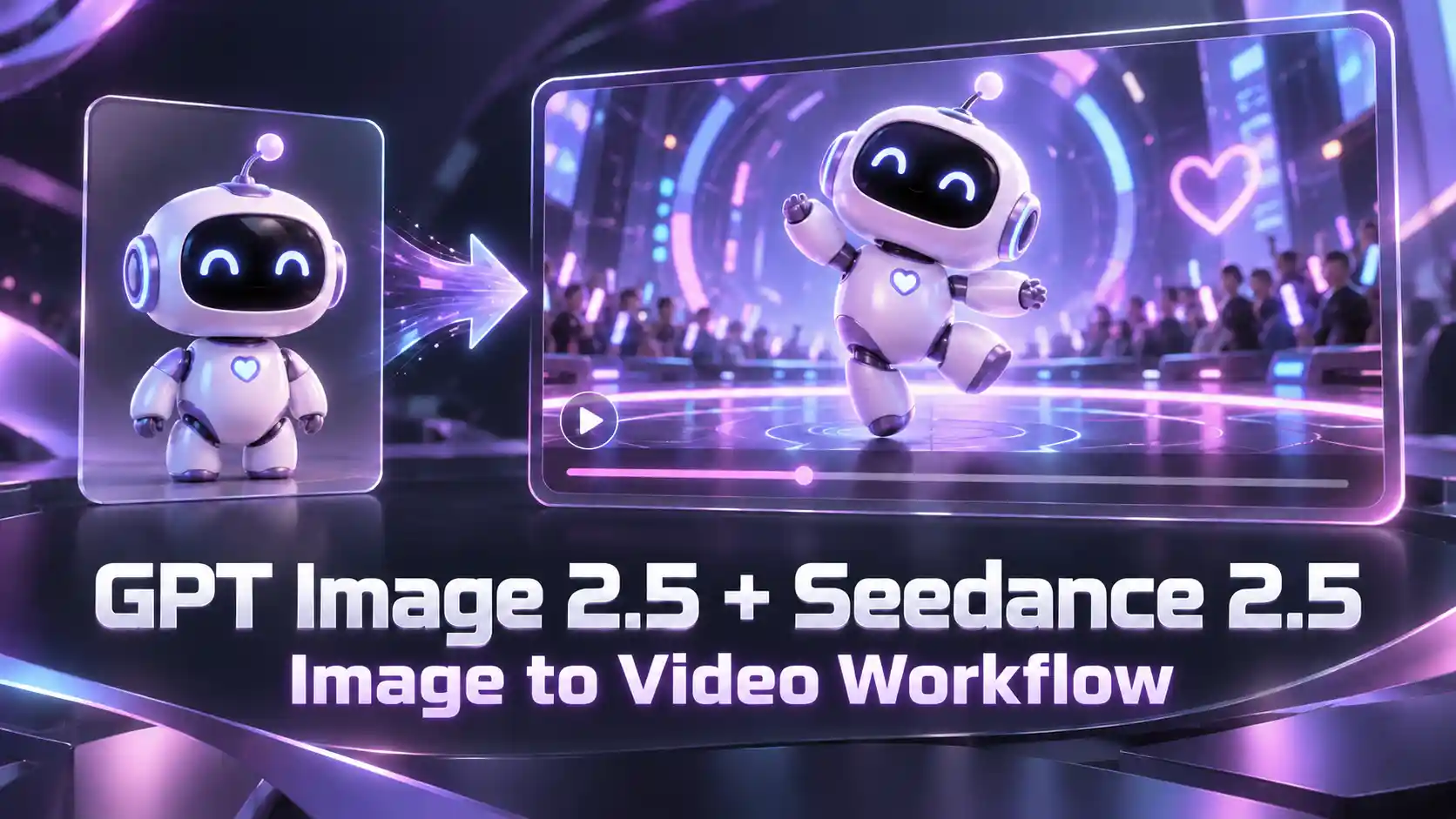
A strong AI video starts with visual decisions: who appears, what changes, and how the scene should look. Making those decisions in still images gives you something concrete to inspect before adding movement.
This GPT Image 2.5 and Seedance 2.5 workflow separates image design from animation.
Use GPT Image 2.5 to prepare characters, key poses, and visual styles
Then bring those references into Seedance 2.5 to explore motion
The five workflows below cover cinematic characters, pixel art, planned action sequences, separate poses, and style transformation.
TL;DR: GPT Image 2.5 and Seedance 2.5 Workflow
Start with the right visual reference: a character sheet defines appearance; action keyframes describe movement; a storyboard plans shots.
Choose a focused task: animate a character moment, explore a pixel-art scene, or connect a short sequence of poses.
Give the video prompt a different job: describe timing, transitions, and camera movement instead of merely repeating the image description.
Review the handoff: conflicting references and overloaded instructions can undermine an otherwise strong design.
Try Seedance 2.5 Video Generator
How GPT Image 2.5 and Seedance 2.5 Work Together
Design the visual first, then direct the motion.
Think of the workflow as two connected creative stages:
Stage | Main task | Useful output |
GPT Image 2.5 | Establish appearance, composition, and key visual states | Character references, scene images, pose sequences |
Seedance 2.5 | Interpret references alongside motion instructions | Video drafts with action and camera movement |
Review | Check whether the result communicates the intended idea | A focused revision or an approved clip |
Image-to-video and multi-reference options are available on the Seedance 2.5 generation page. Choose the mode that fits your inputs and describe how each reference should be used.
A pose sheet and a storyboard are not interchangeable. The former can show stages of one movement; the latter can change framing, location, or narrative focus.
Decide which information you need before generating the sheet with GPT Image 2.5.
Character Design to Cinematic Short Videos
Build the character before directing the scene.
A character design can become the starting point for a short cinematic moment: an entrance, a reaction, or a quiet interaction with the environment. This approach is useful when a recognizable subject matters more than a complicated plot.
Begin in GPT Image 2.5 by defining the face, hairstyle, clothing, and silhouette. Once the design is approved, prepare a scene image showing the character in the intended setting.
A clean design sheet explains appearance; a scene image also establishes framing and atmosphere.
Then use Seedance 2.5 to introduce a focused action and camera direction. For example, ask the character to turn toward a sound while the camera moves closer. Keep the action brief enough to read clearly.
💡 Tip:
Build additional views from the approved character reference instead of independently redesigning the person for every shot.
✅ Check before publishing:
Does the face remain recognizable during the turn? Do clothing and held objects stay consistent? These details matter more than adding another camera move.
Pixel Art to Animated Video
Bring pixel worlds to life without losing their style.
Pixel art introduces a different priority: the animation should preserve the visual language that makes the image distinctive. Use GPT Image 2.5 to establish the palette, apparent pixel size, and character silhouette.
For a pixel art to AI video experiment, describe restrained movement and the intended visual treatment. A stationary camera can make it easier to judge whether the subject and background remain stylistically coherent.
💡 Tip:
Start with a single moving element. Add environmental motion after you have a direction worth developing.
✅ Check before publishing:
Check before publishing: Look for flickering edges, changing pixel density, and unwanted realistic shading.
Action Sequence Images to Character Animation
Plan the movement before generating the video.
Some actions are easier to communicate through poses than through a long description. An ordered sequence can make the intended beginning, main action, and finish visible before video generation begins.
In GPT Image 2.5, request a small set of key poses for one action. For a simple jump, that might mean preparation, takeoff, airborne movement, and landing. Keep the character design and viewing direction stable so the changing pose is the main information.
Next, describe how the movement should unfold in Seedance 2.5: where it accelerates, whether there is a pause, and how it ends. The images supply visual milestones; the prompt supplies temporal direction.
💡 Tip:
Give each pose a distinct purpose. Nearly identical images add little guidance, while too many unrelated actions dilute the sequence.
✅ Check before publishing:
Check before publishing: Review whether the important stages appear in the intended order. A convincing pose alone is not enough if the preparation or landing disappears.
Separate Character Poses to Continuous Motion
Connect distinct poses with a movement path.
Use GPT Image 2.5 to explore different poses and action states while preserving a character’s defining features. Expressions, gestures, and body language can reveal personality, creating a varied set of images that works well as character design material.
These images do not need to form a planned animation sequence. A confident stance, an energetic leap, and a playful reaction may each highlight a different side of the same character.
With Seedance 2.5, you can use these pose variations as references for a character showcase video. The actions may not connect as one continuous physical movement, but transitions and camera changes can help them feel visually plausible and fluid. The result can give static designs more energy and make the character more engaging to promote.
💡 Tip:
Describe the goal as a character showcase, allowing natural transitions or cuts between distinct actions.
✅ Check before publishing:
Check before publishing: Prioritize recognizable character features, expressive movement, and smooth presentation over forcing every pose into one uninterrupted action.
Style Transfer to a Complete Animation Workflow
Set the style, build the poses, then animate.
A style transformation can give an existing visual concept a new direction before you develop its movement. For example, you might reinterpret a character illustration in a sculpted or graphic visual style, then build animation references from that version.
The GPT Image 2.5 style transfer workflow has two image stages.
First, establish the new appearance while preserving the features that make the subject recognizable.
Second, use that approved image to create the necessary action poses.
Bring the resulting references into Seedance 2.5 and describe the action without introducing a competing aesthetic.
💡 Tip:
Approve the style before expanding the pose set. Otherwise, you may need to repeat the same correction across every image.
✅ Check before publishing:
Check before publishing: Confirm that the character, background, and movement feel part of the same visual world. More detail is not always an improvement if it weakens the chosen style.
How to Create Video-Ready Images with GPT Image 2.5
Make every image useful for the animation that follows.
These preparation choices apply across all five workflows:
Choose the image format deliberately. Use a single key image for a focused shot, a character sheet for appearance, or an ordered sequence for action planning. Do not build a complex board without a reason.
Leave room for movement. Show the necessary hands, feet, and props. If a subject needs to move right, avoid placing it against the right edge.
Keep essential details readable. Simplify distracting backgrounds and check individual panels at their actual size. Tiny faces and props in a dense sheet may provide weak guidance.
Edit precisely before expanding. Name the element to change and the details to preserve. Review the correction before generating more variations.
A concise image-editing prompt might be:
Keep the character’s face, outfit, and visual style unchanged. Widen the framing to show the full body and leave more space on the right for movement.
For GPT Image 2.5 prompts for animation, prioritize useful composition over decorative complexity. An image succeeds here when it clearly communicates the subject and supports the intended movement.
Turn Your Next Image into a Video
Start with one character, one movement, or one visual style.
Build a clear reference in GPT Image 2.5, then use Seedance 2.5 to explore how it moves.
A focused first attempt gives you a useful foundation for the next creative decision.
GPT Image 2.5 + Seedance 2.5 Workflow FAQs
Do I need to generate every animation frame?
No. This workflow uses selected images to guide video generation. It is different from manually producing every frame. Create enough references to communicate the important visual states without assuming that more images always improve the result.
Can I start with an existing photo or drawing?
Yes, as a starting point for image preparation, subject to the tools’ input rules. You can revise its composition or develop a new visual treatment. Check the video service’s reference restrictions separately, particularly for real-person images.
Should captions and titles be part of the reference image?
Include text when it belongs to the scene design. For subtitles, promotional copy, or information that must stay exact, adding it during editing usually gives you more direct control over wording and placement.
Can I reuse assets for horizontal and vertical videos?
Often, but inspect the framing for each format. A wide composition may lose important action when cropped vertically. Reframe the source image when the subject needs more room rather than relying on the final crop alone.